Home ›
Electronics › Why a Monitor Goes Black When You Raise the Refresh Rate
Electronics
Why a Monitor Goes Black When You Raise the Refresh Rate
PBy the Pickpedia Team·3 picks compared·Last verified October 2026
Affiliate disclosure: As an Amazon Associate, Pickpedia earns from qualifying purchases. Links on this page are paid links, and we may earn a commission at no extra cost to you. This never affects our picks or scores.
This page contains affiliate links. If you buy through one we may earn a
commission, at no cost to you.
Almost certainly nothing is dying. A panel that blinks black on and off when you raise the
refresh rate, and stops when you put it back, is not a fault at all. It is a link
retraining, over and over, because you have asked for a mode that does not fit down the
wire, and the wire's response to a mode it cannot carry is to drop the link, renegotiate, come back,
and fail again.
The useful thing about that is it turns into arithmetic you can do before you buy anything. A
display mode is a bit rate. Three separate devices each publish a budget for it. And the one that
decides whether the picture appears is whichever of the three is smallest, which is almost never the
one on the front of the box.
A mode is a number, and you already have all four factors
Everything on a screen arrives as pixels, in order, at a fixed rate. Multiply what the mode
demands:
width, times height, times the refresh rate, times three colour channels, times the bits
per channel.
Full HD at 60 hertz and 8 bits per channel is 1920 times 1080 times 60 times 24, which is
2.986 gigabits a second. Ordinary 4K at 60 hertz and 8 bits is
11.944. Those two numbers between them cover most of what most people run, and both
are small, which is why nobody ever thinks about this.
Now push on any one of the four factors and watch it escalate, because it is a product and not a
sum. 4K at 120 hertz and 12 bit colour is 35.832. The same panel at 144 hertz is
42.998. 5K at 120 hertz is 63.701. 8K at 60 hertz is
71.664. Raising the refresh rate from 120 to 144, which is one menu click and feels
like nothing, adds 7.166 gigabits a second, which is more than twice the entire demand of the Full
HD mode above.
One correction before the comparisons, and it is the only piece of outside knowledge this page
needs. Modern HDMI does not send those bits raw. It uses a fixed rate link with 16 bit to 18 bit
line coding, so the channel has to carry 1.125 times the payload. USB4 and
Thunderbolt tunnel DisplayPort with 128 bit to 132 bit coding, a lighter 1.03125. Neither factor
appears in any listing we carry, and both are in the honest limit at the end.
Width times height times refresh
times three times the bits per colour is a bit rate, and a link either carries it or retrains. Every
mode in the 96 gigabit cable's own specification list fits inside its own rating. The 16K in its name
needs 2.24 times that rating at 8 bit and 3.36 times at the 12 bit depth the same record claims.
The cable whose name disagrees with its own specification list
Start with the most extreme claim in this catalogue, because it is also the most usefully
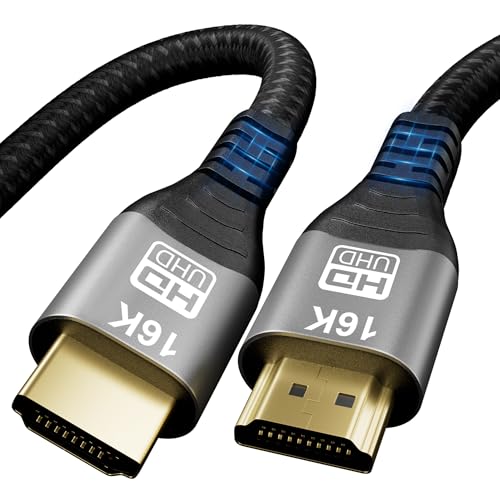
documented. A
short HDMI 2.2 cable rated at 96
gigabits a second publishes, in its performance text, a specific list of modes: 4K at 144 hertz
and at 120 hertz, 5K at 120, and 2560 by 1440 at 240, all of them cited at 12 bit
colour, plus 8K at 60 and enhanced audio return. It is 3.3 feet long, braided, and carries
dynamic HDR, HDCP 2.2 and 2.3, variable refresh rate and auto low latency mode.
Test that list against its own rating, coded:
4K at 144 hertz and 12 bit is 48.373, which is 50.4 percent of 96. The 2560 by
1440 at 240 hertz is 35.832, or 37.3 percent. 5K at 120 is 71.664, or 74.6 percent. 8K at 60 is
80.622, or 84.0 percent. Every single mode in its own specification list
fits inside its own number, and the hardest of them uses 84 percent of it. That is not a
lucky accident, it is what a specification list looks like when somebody has done this
multiplication.
And one of those figures quietly explains why the cable exists at all. 4K at 144 hertz and 12 bit
needs 48.373 gigabits a second, which is 0.8 percent more than the 48 gigabits a
second of the previous HDMI generation. Not twice as much. Eight tenths of one percent. A single
mode sitting a hair over a ceiling is the whole commercial argument for a new cable standard, and
nothing about the picture looks any different.
Then read the product's name. It says 16K. 15360 by 8640 at 60 hertz and 8 bit
colour is 191.103 gigabits a second of payload, or 214.991 coded, which is 2.24 times the
96 the same cable publishes. At the 12 bit depth the same record claims for every other
mode it lists, it is 286.654 raw and 322.486 coded, 3.36 times the rating. Display
Stream Compression is specified to roughly three to one, so the 8 bit case is reachable compressed;
the 12 bit case at three to one is still 107.5 gigabits a second, which is 1.12 times the cable.
So the one resolution in the name is the one resolution that does not fit, and the
specification list beneath it is correct throughout.
Its own drawbacks field gets to the right caution for the wrong reason: "Full spec needs HDMI 2.2
on both ends" and "Resolution claims are maker-stated only". Both true, and neither is the problem.
The problem with 16K here is not certification or honesty about testing. It is multiplication. The
full record is in our
review of the 96 gigabit
HDMI 2.2 cable, and the category view, which states the principle in words without doing the sum,
is how to choose an HDMI cable for 4K
and 8K gaming.
The same test on 40 gigabits, where the headline is the only thing that misses
A
right angle Thunderbolt 4 cable
rated 40 gigabits a second publishes 240 watts over Power Delivery 3.1, a 90 degree connector,
quadruple shielding, a zinc alloy shell, over 49,000 bends and 30,000 plug cycles, and on video: a
single 8K display, 5K at 60 hertz, 4K at 144 hertz, or two 4K displays at 60 hertz, with daisy
chaining.
Work the list at 8 bit, which is the generous reading. 5K at 60 is 21.234, which is 53.1 percent
of 40. Two 4K displays at 60 together are 23.888, or 59.7 percent. 4K at 144 is 28.665, or 71.7
percent. Those all fit comfortably, and they still fit after the 1.03125 tunnelling factor, which
moves 4K144 to 29.561.
Now the headline. 8K at 60 hertz and 8 bit colour is 47.776 gigabits a second of payload,
which is 1.19 times the cable's entire rating before any coding is counted at all, and
49.269 with it. There is no reading of 40 that contains it uncompressed. What does fit is 8K at
30 hertz, 23.888, which is 59.7 percent of the budget and exactly the same demand as
the two 4K displays the record lists beside it. So "a single 8K" on this cable means either half the
refresh rate of everything else in the sentence, or compression, and the record does not say
which.
What its drawbacks field does say is the set of conditions that genuinely apply: "Full 40Gbps
speed needs a Thunderbolt 4 device", "Video output requires DP Alt Mode support", "Dual-monitor
setups need two cables". All three are real and all three are about the devices at the ends rather
than the pipe. Our
review of the right angle
Thunderbolt 4 cable has the rest, and
how to choose a Thunderbolt 4 cable
for your setup covers the compatibility side.
The dongle that explains its own 30 hertz and gets no credit for it
This is the best of the three records and the one nobody would guess was doing arithmetic. A
three in one USB-C multiport adapter
with 4K HDMI, USB 3.0 and passthrough charging volunteers, in its own performance text, that
"single-cable adapters commonly output 4K at a 30Hz refresh rate. That is fine for video but can
feel less smooth for desktop mouse work." It is right, and the reason is sitting two sentences
away.
A USB-C connector has four high speed lane pairs and no more. The adapter's own feature list
needs some of them for a USB 3.0 port it rates at 5 gigabits a second. Give two lanes to USB and two
to DisplayPort at the common HBR2 rate, and the video budget is two times 5.4 gigabits a second
times the 0.8 that 8 bit to 10 bit coding leaves, which is 8.64 gigabits a second.
4K at 30 hertz and 8 bit is 5.972, which is 69.1 percent of 8.64. It fits, with
room. 4K at 60 hertz is 11.944, which is 1.38 times 8.64. It does not, and no
firmware or certification changes that. So the 30 hertz is not a compromise the maker chose.
It is the USB port sold on the same dongle taking half the lanes, and the record describes the
symptom one paragraph after describing the cause.
There is a pleasant symmetry worth noticing. Four lanes of HBR2 give 17.28 gigabits a second, and
4K at 60 hertz against that is also 69.1 percent. The mode you can have on two lanes at half the
refresh rate, and the mode you can have on four lanes at full refresh rate, sit at exactly the same
fraction of their budgets, because halving the refresh rate and halving the lanes are the same
division. Details in our
review of the USB-C multiport
adapter, and the wider version of this trap is
USB-C is a plug, not a
promise, which is about the same four lanes being asked to do several jobs at once.
Why the symptom is a blink and not an error message
The behaviour in the question follows from all of this without any extra physics. When a source
offers a mode, the sink answers with what it can accept, the link trains at a rate, and the picture
appears. Ask for a rate above what the weakest element in the chain can carry and the training
either fails or succeeds marginally and then loses lock. A failed training is a black screen. A
marginal link that loses lock and retrains is a black screen that comes and goes,
which is the exact complaint, and it is also why the problem is worse when the cable warms up, worse
on a longer run, and gone the moment you step the refresh rate back down.
It also explains the thing that confuses people most, which is that the panel, the graphics card
and the cable can each be individually capable of the mode and the combination still fail. The
budget is not the average of the three. It is the minimum, and a dongle in the
middle of an otherwise excellent chain sets it at 8.64.
The practical order to check, then, is the order of the three budgets above, smallest first. Take
the adapter out of the path. Shorten the run. Drop the colour depth from 12 bit to 10 or 8, which
cuts the demand by a quarter or a third for a difference most people cannot see on a desktop. Or
drop the refresh rate, which is the lever the question already found by accident.
And the projector version of the same confusion has its own page, because projectors publish two
resolutions on purpose:
how to choose a
projector is right that "a native 1080p projector that supports 4K does not show a 4K image", and
the arithmetic here is what that sentence is made of. A device's supported resolution is a
statement about the bit rate it will accept at the input. Its native resolution is a
statement about the pixels it owns. Those are different quantities, and only one of them is on the
front of a cable.
The honest limit, and what this page refuses to compute
What is exact: every payload figure in the table. Each is one multiplication of four published
integers, and the ratios between them, including the 2.24 and the 3.36 and the 1.38, are exact in the
same way. The percentages against 96, 40 and 8.64 are exact given those three budgets, and all three
budgets are published by the products themselves.
What is representative rather than published, and it is a short list that matters. The
1.125 coding factor for fixed rate HDMI links and the 1.03125 for
USB4 tunnelling are standard but appear in no record we carry; drop both and every coded figure falls
by those amounts while every ratio between modes is untouched. Blanking intervals are ignored
entirely, which is the biggest soft edge here: real timings add roughly a tenth to a quarter
on top for standard formats and much less with reduced blanking, so every demand above is a
floor and the true margins are tighter than stated, never looser. The three to one
ceiling on Display Stream Compression is the specification's. And the two lane split on the dongle is
inferred from the fact that its own USB 3.0 port must be fed from somewhere, not stated
anywhere in its listing.
Three things this page deliberately does not compute. It does not predict which mode a
given link will actually negotiate, because that depends on the identification data the
monitor publishes to the source and on whether both ends implement compression, and not one record we
carry states either. It does not use chroma subsampling, which cuts the payload by a
third at 4:2:2 and a half at 4:2:0, because no listing says whether a mode it advertises assumes it,
and presenting a subsampled mode as if it were full colour is precisely the move this page is about;
naming the gap is more useful than filling it with an assumption that flatters the product. And it
does not attempt the audio side of the same budget, which the first cable's enhanced
return channel also has to fit, because lossless surround formats are published as names rather than
rates.
Three numbers to carry. A display mode is width times height times refresh times three times the
bits, so 4K at 60 and 8 bit is 11.944 gigabits a second and 8K at 60 and 12 bit is 71.664. A link
budget is the minimum of the source, the cable and the sink, never the average,
which is why one dongle at 8.64 decides a chain full of 40s. And when a resolution appears in a
product's name but not in its own specification list, do the multiplication, because on the cable
above the gap between the two was a factor of 2.24.
Why a Monitor Goes Black When You Raise the Refresh Rate at a glance
Battony USB-C Multiport AV Adapter (4K HDMI, USB 3.0)
Adding HDMI, USB-A and charging to a USB-C laptop or phone
Adds HDMI, USB 3.0 and charging from one port
Video needs a device that supports USB-C DP Alt Mode
Why you can trust this guide
We compared these picks using verified manufacturer specifications, current retailer listings, and patterns in owner feedback, alongside editorial research. We focus on measurable differences such as performance, capacity, usability, and build quality. Pickpedia does not present editorial research as laboratory testing, and we do not claim hands-on testing unless it was actually performed.
Best for short runs to a nearby console or streaming box
8.4/ 10 Pickpedia editorial score
This is a 3.3-foot HDMI 2.2 cable rated by the maker for 96Gbps ultra high speed. It suits gamers and home cinema owners who want headroom for 4K at 120Hz, 8K at 60Hz and eARC audio return. The listing lists dynamic HDR, HDR10+, HDCP 2.2 and 2.3, VRR and ALLM support. Nylon braiding and copper cores aim at durability and steady signals.
Best for tidy high-speed Thunderbolt 4 desk setups
8.8/ 10 Pickpedia editorial score
The Yiicumhh Thunderbolt 4 cable combines a 90 degree connector with full USB4 capability. It moves data at 40Gbps, charges at up to 240W over PD 3.1, and drives a single 8K or dual 4K display. The right-angle plug keeps the cable flat against a device for tidy routing. A nylon braid, quadruple shielding, and zinc alloy shell target long-term durability.
Connector90 degree right angle
StandardThunderbolt 4 / USB4
Data rate40Gbps
ChargingUp to 240W PD 3.1
VideoSingle 8K or dual 4K
JacketNylon braided
ShellZinc alloy
Bend ratingOver 49,000 bends
Pros
90 degree plug keeps routing flat and tidy
40Gbps speed handles large file transfers fast
240W PD 3.1 charging with backward compatibility
Drives single 8K or dual 4K displays
Nylon braid rated for over 49,000 bends
Quadruple shielding and zinc alloy resist wear and heat
Cons
Full 40Gbps speed needs a Thunderbolt 4 device
Video output requires DP Alt Mode support
Dual-monitor setups need two cables
Speed, wattage, and bend ratings are maker-stated, not lab-verified
Best for Adding HDMI, USB-A and charging to a USB-C laptop or phone
8.6/ 10 Pickpedia editorial score
A compact 3-in-1 USB-C multiport adapter that adds a 4K HDMI output, a USB 3.0 port with up to 5Gbps data transfer and a USB-C passthrough charging port, plug and play with no drivers, for compatible USB-C laptops, phones and tablets.
BrandBattony
Type3-in-1 USB-C multiport adapter
VideoHDMI, up to 4K
Data portUSB 3.0, up to 5Gbps
ChargingUSB-C passthrough
SetupPlug and play, no drivers
RequirementDevice must support USB-C video (DP Alt Mode)
ColourBlack
Pros
Adds HDMI, USB 3.0 and charging from one port
Up to 4K video output
Fast USB 3.0 data up to 5Gbps
Passthrough charging keeps you powered
Plug and play, no drivers
Pocket-sized for travel
Cons
Video needs a device that supports USB-C DP Alt Mode
4K is often limited to 30Hz on single-cable adapters